GitHub Pages: Jekyll in Disguise
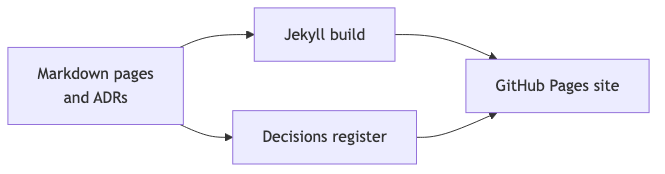
Having produced a series about basic web pages, the most common use I have as a technical architect for static web pages is technical documentation. GitHub Pages is a blogging engine with the serial numbers filed off. Knowing that turns it into a proper home for your project’s documentation

Having spent this series on basic web pages, I should admit what I actually use static web pages for. As a technical architect, it is almost always technical documentation.
The documentation I produce is mostly about how the systems we are building interact with the business they serve. Software doesn’t exist in a vacuum, it solves a problem. That problem might be recording things, processing data from one form to another, or entertaining humans. Either way, things need documenting, and not all of it in one format. I use PDFs and websites a lot. When the audience is a development team, or a set of teams, GitHub provides a good set of tooling through GitHub Pages.
GitHub Pages is really a blogging engine called Jekyll underneath. Knowing the technology that powers Pages makes Pages a lot more useful, and it happens to be the same technology this series is built with.
What is Jekyll
Jekyll is a static site generator written in Ruby. You give it a folder of Markdown files, some layouts (HTML templates with gaps in them), and a small configuration file. It gives you back a folder of plain HTML, CSS and JavaScript, which is exactly the kind of site we built by hand in Back to Basics: HTML and put online in Where Should It Live?.
The important pieces are:
- Markdown files with a block of “front matter” at the top. Front matter is a few lines of YAML between
---markers that tell Jekyll how to treat the file, for example which layout to use and what the page title is. - Layouts in
_layouts/. A layout is an HTML page with{{ content }}marking where the Markdown goes. Write the header, navigation and footer once, and every page gets them. _config.yml, the site-wide settings: title, theme, plugins, and what to include or exclude.- Liquid tags such as
{% link _posts/01-intro.md %}, which let you link between pages without hard-coding URLs. Jekyll fails the build if the target doesn’t exist, which is a cheap broken-link check.
A minimal page looks like this:
---
layout: default
title: How orders flow through the platform
---

# How orders flow through the platform

Orders arrive from the web shop and are queued for fulfilment...
Because it is only Markdown in a folder, the documentation lives in the repository, is reviewed in pull requests, and has a full history in git, exactly like code.
Where GitHub Pages fits
GitHub Pages is GitHub’s hosting for the output of a build. You have two ways to publish:
- Build from a branch. In the repository go to Settings → Pages, set Source to “Deploy from a branch”, and pick a branch and folder (
/or/docs). GitHub runs Jekyll for you on every push. This is the quickest way to get started and needs no workflow file. - Build with GitHub Actions. Set Source to “GitHub Actions” and add a workflow that builds the site and deploys it. This gives you control over the Ruby version, extra plugins, and pre-build steps such as generating diagrams. The deploy step uses the official
actions/configure-pages,actions/upload-pages-artifactandactions/deploy-pagesactions.
Start with the first. Move to the second when you need something the built-in build can’t do. Both give you a URL of the form https://<org>.github.io/<repo>/.
One caution: on GitHub Enterprise, Pages sites can be restricted to people with access to the repository. Check that setting before you publish anything internal, as public repositories publish public sites by default.
Taking control of your project’s documentation
Documentation that belongs to the engineering team probably belongs in the engineering team’s repository. But consider who else needs to know things. Does the service desk need the landscape of what goes where? Do the people who will inherit this in two years? Think about your audiences’ needs, and use a mix of methods to communicate with different people as appropriate.
The reason to keep engineering documentation near the code is friction. It is easier to write with the tools you are already writing with. As soon as people are forced into a different environment, the cost of writing anything goes up. If the tool is online, you have to be online to use it, and if you are online then Slack, email and Teams are all sitting there waiting to interrupt you. An engineer who can write documentation in their editor, offline, gets more of it written.
Setting it up locally
Working locally means you see exactly what will be published before you push. You need Ruby and Bundler installed, then:
# from the root of the repository
mkdir docs && cd docs
bundle init
bundle add jekyll
Add a _config.yml:
title: Orders Platform Engineering Docs
description: How the platform works and why.
markdown: kramdown
Add an index.md, then build and serve with live reload:
bundle exec jekyll serve --livereload
Browse to http://localhost:4000. Edit a Markdown file, save, and the browser refreshes.
If you are going to publish using the branch-based build, use the github-pages gem instead of jekyll so your local build matches GitHub’s versions exactly:
# Gemfile
source "https://rubygems.org"
gem "github-pages", group: :jekyll_plugins
Add _site/, .jekyll-cache/ and .bundle/ to .gitignore. The generated _site folder is build output, not source.
A Makefile is a good place to record the commands so a new engineer only needs to type make serve. I wrote about that in Makefiles - Still a Useful Tool.
A development blog
Yes, in theory we have all these pull requests we can trawl back through. That, however, is hard work. What if we were to keep a smaller, more detailed blog within our docs? Would that save time trawling through the code?
Firstly have the conversation: who is the blog for? GitHub is a technical resource, so the audience is probably the engineering team, and it may be just yourself. Consider giving yourselves permission to be technical. Consider giving yourselves permission to write less in the PR.
Jekyll has blogging built in. Any Markdown file in a _posts/ folder named YYYY-MM-DD-title.md is treated as a dated post:
docs/
  _posts/
    2026-03-02-switching-to-event-sourcing.md
    2026-03-19-why-the-billing-import-is-slow.md
---
layout: post
title: "Why the billing import is slow"
tags: [performance, billing]
---

We spent two days on this so nobody else has to...
An index page can then list them automatically:
{% for post in site.posts %}
- {{ post.date | date: "%-d %b %Y" }}: [{{ post.title }}]({{ post.url | relative_url }})
{% endfor %}
Some things worth putting in a development blog that a PR description is a poor home for:
- Dead ends: “we tried X, and here is why it didn’t work”.
- What we learned while investigating an incident or a performance problem.
- Context that would be lost when the people move on.
- Short “what changed this sprint” notes for the wider team.
Keep entries short and dated. The value is in having them, not in polishing them.
A register of architectural decision records
ADRs are a good candidate for documentation that should sit near the code. An ADR is a mechanism for an engineer or tech lead to justify a significant decision that deviates from the organisational norm, and to state their reasoning. Organisational norms are set by standards written by enterprise architecture teams and technical architects. It makes little sense to rewrite documentation that has already been written, so ADRs should be limited to breaking the rules.
A simple format
One file per decision, numbered so the order is preserved and the numbers can be referred to in conversation and in code comments:
docs/
  decisions/
    0001-use-postgres-for-order-store.md
    0002-deviate-from-standard-logging-library.md
---
layout: default
title: "ADR 0002: Deviate from the standard logging library"
parent: Decisions
nav_order: 2
adr_number: 0002
status: Accepted
date: 2026-04-11
---

# ADR 0002: Deviate from the standard logging library

- **Status:** Accepted (Proposed / Accepted / Superseded by ADR 00xx)
- **Date:** 2026-04-11
- **Deciders:** Platform team, reviewed by Enterprise Architecture

## Standard being deviated from

Link to the organisational standard. Don't restate it.

## Context

What is forcing the decision? Constraints, deadlines, numbers.

## Decision

What we are doing instead.

## Consequences

What gets easier, what gets harder, and what we are accepting as a risk.
When should this decision be revisited?
adr_number, status and date are duplicated between the front matter and the body: the front matter is what the register reads, and the body bullets are what a reader sees on the page itself. Keep the two in sync when a decision’s status changes.
Making it a register
A folder of files is not yet a register. Use Jekyll’s collections to make the ADRs a first-class thing and give yourself an automatic index. In _config.yml:
collections:
  decisions:
    output: true
    permalink: /decisions/:name/
Collection folders are named with a leading underscore, so the files go in _decisions/. A decisions.md page can then build the register itself, as a dated list in number order:
{% for adr in site.decisions %}
- **[ADR {{ adr.adr_number }}: {{ adr.title }}]({{ adr.url | relative_url }})** — {{ adr.status }}, decided {{ adr.date | date: "%-d %b %Y" }}
{% endfor %}
Which gives you something like this, regenerated on every build:
- ADR 0001: Use Postgres for the order store — Accepted, decided 2 Mar 2026
- ADR 0002: Deviate from the standard logging library — Superseded by ADR 0005, decided 11 Apr 2026
- ADR 0005: Adopt structured logging across all services — Accepted, decided 19 Jun 2026
With status, adr_number and date in each ADR’s front matter, that list stays correct with no manual upkeep. When a decision is superseded, don’t delete it. Change its status and link to the new one, as ADR 0002 does above. The history is the point.
Tools like adr-tools can create the numbered files for you, but a plain copy of a template file works just as well.
Development plan
The development plan is the “what are we doing and in what order” document. Keep it as a page in the docs so it is versioned with the code, and can be changed in a pull request that the team can discuss.
A workable structure:
- Goal: one paragraph on the outcome and who benefits.
- Milestones: a short list, each with an exit criterion that can be checked (“orders can be placed through the new API in staging”).
- Now / Next / Later: an honest view of what is being worked on, what is queued, and what is only an idea.
- Risks and open questions: things that could change the plan.
Use a Markdown task list for status. GitHub renders it as check boxes in the repository and Jekyll renders it as a list:
## Milestone 2: New order API

- [x] Agree the contract (ADR 0003)
- [x] Stand up the staging environment
- [ ] Migrate the web shop
- [ ] Decommission the old endpoint
A plan in a document rots quickly if nobody is looking at it, so link to it from the README and review it in whatever regular meeting the team already has. Detailed task tracking belongs in issues; the plan should link to those and give the overview, not duplicate them.
Adding Mermaid diagrams
Mermaid is a text-based diagramming language which supports flowcharts, sequence diagrams and C4 diagrams among others. Because it is text, it diffs and reviews well in pull requests, which is the main reason to prefer it over exported screenshots.
There are two ways to get Mermaid into a Jekyll site: inline, or embedded. Inline is easier for writers, as the diagram source sits where the diagram needs to be. Embedded diagrams are compiled once and linked like any other image, which is more idiomatic for developers.
Inline
GitHub renders Mermaid inside fenced code blocks when you view a Markdown file on github.com, but Jekyll does not, so the same file will show up as plain text on the Pages site unless you add the Mermaid library yourself. Add this to your layout (for example _layouts/default.html), just before </body>:
<script type="module">
  import mermaid from "https://cdn.jsdelivr.net/npm/mermaid@11/dist/mermaid.esm.min.mjs";
  mermaid.initialize({ startOnLoad: false });
  // kramdown emits ```mermaid blocks as <pre><code class="language-mermaid">
  document.querySelectorAll("pre > code.language-mermaid").forEach((code) => {
    const div = document.createElement("div");
    div.className = "mermaid";
    div.textContent = code.textContent;
    code.parentElement.replaceWith(div);
  });
  await mermaid.run();
</script>
Now a fenced block like this works both on github.com and on the site:
```mermaid
sequenceDiagram
    Web shop->>Order API: POST /orders
    Order API->>Queue: OrderPlaced
    Queue->>Fulfilment: OrderPlaced
```
The trade-off is that the browser downloads the library and draws the diagrams on every page view, and viewers without JavaScript see the source text.
Embedded, compiled ahead of time
Here the diagram source lives in its own .mmd file and is compiled to an image that the page links to like any other picture. This is the approach used to build this series. Install the command line tool:
npm install --save-dev @mermaid-js/mermaid-cli
Keep sources and outputs in separate folders:
assets/
  diagrams/context.mmd     # the source, edited by humans
  images/context.png       # generated, committed or built in CI
Compile a single diagram:
npx mmdc -i assets/diagrams/context.mmd -o assets/images/context.png
Then link to it from Markdown:

Use a Makefile rule so only changed diagrams are rebuilt, which is a good example of what Makefiles are for:
MERMAID_SOURCES := $(wildcard assets/diagrams/*.mmd)
MERMAID_DIAGRAMS := $(patsubst assets/diagrams/%.mmd,assets/images/%.png,$(MERMAID_SOURCES))

assets/images/%.png: assets/diagrams/%.mmd
	npx mmdc -i $< -o $@

diagrams: $(MERMAID_DIAGRAMS)
Give mmdc an .svg output instead of .png if you want diagrams that scale and remain sharp on high-resolution screens. Remember to write alt text, since the diagram is otherwise invisible to screen readers.
Whether you commit the generated images or build them in CI is a team choice. Committing them keeps the pipeline simple and the pages work from a plain branch-based build. Building in CI keeps generated files out of the repo, but requires the Actions-based deployment.
Which to choose
Inline puts the diagram next to the text that explains it, needs no extra build step, and renders on github.com as well as on the site. It costs you a JavaScript download on every page view, and anyone without JavaScript sees the source rather than a picture.
Embedded works without JavaScript, renders on github.com as a plain image, and gives you a file you can drop straight into a slide deck or a PDF. The price is a separate file to keep track of and a build step to run.
Many teams use inline for quick sketches and embedded for the important architecture diagrams that get reused.
One repo, many routes to allowing a pull request
As an architect or project manager there is a massive difference between the production code and the documentation. You probably don’t need to apply the same level of scrutiny to the pull requests that only touch documentation. So why not have separate pull request rules?
GitHub doesn’t let you set a different number of required approvals per folder directly, but you can get very close with a few features combined.
1. CODEOWNERS. A .github/CODEOWNERS file assigns review responsibility by path:
# Everything is owned by the engineering team by default
*               @my-org/engineering

# Docs are owned by a wider group, including architects and technical writers
/docs/          @my-org/architects @my-org/engineering

# Decisions need an architect
/docs/decisions/ @my-org/architects
The last matching pattern wins. Combined with the branch protection or ruleset option “Require review from Code Owners”, a docs-only change is only blocked on the docs owners, while a code change needs the engineering team.
2. Path-filtered workflows. Your build and test pipeline probably takes a while. Stop it running for documentation changes:
on:
  pull_request:
    paths-ignore:
      - "docs/**"
and have a separate, lighter workflow for docs that builds the Jekyll site and checks links:
on:
  pull_request:
    paths:
      - "docs/**"
If a check is marked as required and its workflow is skipped by a path filter, the pull request will wait forever for it. Either don’t mark path-filtered checks as required, or add a small always-running job that reports success when nothing relevant changed.
3. Rulesets. Repository rulesets let you set the required approvals, required status checks and merge methods. If the documentation and the code need really different rules, the honest answer is often a second branch pattern (for example a docs/* branch prefix with lighter rules) or a separate documentation repository. A sensible default is one repo, one ruleset, and CODEOWNERS to route review.
4. Preview builds. Reviewers of documentation want to see it rendered. Upload the built _site folder as a workflow artifact on each pull request so they can download and view it, or use a deployment preview if your organisation has one.
Keep the lighter rules honest, though: documentation that describes security controls or contractual commitments is not low-risk just because it is Markdown.
Deploying more complex documentation in a docs folder
Once the docs grow beyond a handful of pages, keep them in a docs/ folder so they don’t tangle with the source code, and configure Pages to publish from it. It is also the layout that makes the CODEOWNERS approach above easy.
my-service/
  src/
  tests/
  docs/
    _config.yml
    Gemfile
    index.md
    _layouts/
    _posts/          # development blog
    _decisions/      # ADR register
    assets/
      diagrams/
      images/
  .github/
    CODEOWNERS
    workflows/
      docs.yml
Put together, the loop looks like this. Nothing in it is special to documentation; it is the same path a code change takes, which is rather the point.

For the simple route, in Settings → Pages choose “Deploy from a branch”, branch main, folder /docs.
For anything with a build step (Mermaid compilation, extra Jekyll plugins, a newer Jekyll than the github-pages gem supports) use Actions. A workflow that builds and deploys the docs folder looks like this:
name: Deploy docs

on:
  push:
    branches: [main]
    paths: ["docs/**"]
  workflow_dispatch:

permissions:
  contents: read
  pages: write
  id-token: write

concurrency:
  group: pages
  cancel-in-progress: true

jobs:
  build:
    runs-on: ubuntu-latest
    steps:
      - uses: actions/checkout@v7
        name: Checkout

      - uses: ruby/setup-ruby@v1
        name: Set up Ruby
        with:
          ruby-version: "3.3"
          bundler-cache: true
          working-directory: docs

      - uses: actions/configure-pages@v6
        name: Configure Pages
        id: pages

      - name: Build site with Jekyll
        working-directory: docs
        run: bundle exec jekyll build --baseurl "${{ steps.pages.outputs.base_path }}"
        env:
          JEKYLL_ENV: production

      - name: Upload pages artifact
        uses: actions/upload-pages-artifact@v5
        with:
          path: docs/_site

  deploy:
    needs: build
    runs-on: ubuntu-latest
    environment:
      name: github-pages
      url: ${{ steps.deployment.outputs.page_url }}
    steps:
      - name: Deploy to GitHub Pages
        id: deployment
        uses: actions/deploy-pages@v4
Some practical points:
- Base URL. Project sites are served from
/<repo>/, so links must be relative to that. Userelative_urlin templates, as in the examples above, and the--baseurlflag in the build. Forgetting this is the most common reason for a Pages site to have missing CSS and images. - Themes. You don’t need to design anything to start. Set
remote_theme: just-the-docs/just-the-docs(with thejekyll-remote-themeplugin) in_config.ymlfor a documentation theme with search and navigation built in, or write your own layout using the CSS from Making It Look Good. - Navigation. Themes such as Just the Docs use front matter (
parent,nav_order) to build the sidebar. A hand-written layout can loop oversite.pagesor a data file in_data/navigation.yml. - Search. Just the Docs includes client-side search out of the box. Nothing to host.
- Link checking. Add
html-prooferto the docs build to fail on broken internal links before they reach the site. - Excluding files. Use
exclude:in_config.ymlto keepnode_modules, the Gemfile and other tooling out of the published site. - Custom domain. Pages supports a custom domain under Settings → Pages with a
CNAMErecord on your DNS, and provisions HTTPS automatically.
Wrapping up
GitHub Pages is a full site generation tool that can be geared to your project, and the trick is to treat the documentation like an inner product with a clear audience: engineers reading it while they work. Put it next to the code. Write it in Markdown, with the tools they already have open. Review it in pull requests with rules that suit it, and publish it automatically. Pages provides the hosting and Jekyll provides the structure. The rest is deciding what is worth writing down.
As with any useful technology, talk to your team about what will actually save them time and how it fits your wider context. Use the ideas here that work for you, and leave the ones that don’t.