Choosing Colours with Paletton, and Keeping Them with SCSS
Most of us pick a colour scheme by squinting at a page until it stops looking wrong. A colour wheel, a hex code and a small amount of SCSS will do it more reliably, and make the result easy to change
In the CSS post I put the colours of the CV into five custom properties and said that changing the whole scheme was a five-line edit. That is true, but it quietly skips the harder question, which is which five colours. I chose them the way most developers do, by picking a blue I liked, picking a grey that looked friendly next to it, and nudging things until nothing hurt. It worked, in the sense that nobody complained, but I couldn’t have told you why those five belonged together, and if I’d been asked to produce a second scheme in a different mood I’d have started again from a blank page.
This post is about doing that more deliberately, and the argument running through it is that choosing a colour scheme and keeping it somewhere you can easily swap it are really the same job: a palette that is painful to change is one you’ll never revisit, and a palette that is easy to change but was never chosen with care is just a faster way of arriving at the wrong colours. We’ll use a free tool called Paletton (the site, a little confusingly, has one fewer “t” than people tend to type) to generate a scheme from a single starting colour, get it into a file of SCSS variables (which turned out to take a little more manual effort than the tool’s export menu suggests), and use those variables to style two different pages: a small business card for a villain’s property management firm, and the CV from the earlier series. Along the way we’ll convert the CV’s plain CSS into SCSS, which is where the case for SCSS gets made far better by a worked example than by a feature list, and we’ll finish by getting the SCSS compiled into CSS automatically, first with a Makefile and then in a GitHub Actions pipeline.
The example: a business card for the Evil Lair
I want a deliberately small page for the colour work, because a page with forty elements makes it hard to see what any one colour is doing. A business card has a name, a line saying what the business does, and somewhere to get in touch. Here is the content, written as Markdown the way I’d draft it before worrying about presentation:
# Evil Lair Corp

Running the Lair so you can bring the Evil

## Contact

### Address

1 Big Underground System
Suspicious Mountain Island
Pacific

### Email

lairmaster@evil-lair.io
Turning that into HTML is mostly a matter of choosing elements that say what each piece is, which is the point of semantic HTML, and of resisting the urge to add classes and IDs until something actually needs one. The company name is the page’s one h1, the tagline is a paragraph inside the header, and the contact details live in a section with their own heading. The address has the one nice semantic element on offer, address, which exists precisely for contact information and which browsers and screen readers both understand:
<!DOCTYPE html>
<html lang="en">
<head>
  <meta charset="utf-8">
  <meta name="viewport" content="width=device-width, initial-scale=1">
  <title>Evil Lair Corp</title>
  <link rel="stylesheet" href="style.css">
</head>
<body>
  <header>
    <h1>Evil Lair Corp</h1>
    <p class="tagline">Running the Lair so you can bring the Evil</p>
  </header>

  <main>
    <section id="contact">
      <h2>Contact</h2>

      <h3>Address</h3>
      <address>
        1 Big Underground System<br>
        Suspicious Mountain Island<br>
        Pacific
      </address>

      <h3>Email</h3>
      <p><a href="mailto:lairmaster@evil-lair.io">lairmaster@evil-lair.io</a></p>
    </section>
  </main>
</body>
</html>
There is one class and one ID in the whole file. The class lets me style the tagline differently from an ordinary paragraph, and the ID gives the contact section an anchor a link could jump to. Everything else is styled by what it is, which keeps the CSS short and means the HTML doesn’t need to know anything about how it looks.
A first pass at the CSS, with colours I picked without thinking, looks like this:
body {
  margin: 0;
  font-family: system-ui, sans-serif;
  line-height: 1.6;
  color: #222222;
  background: #f4f4f4;
}

header {
  padding: 3rem 1rem;
  text-align: center;
  background: #4a2c7a;
  color: #ffffff;
}

.tagline {
  margin: 0;
  font-style: italic;
}

main {
  max-width: 32rem;
  margin: 2rem auto;
  padding: 0 1rem;
}

h2 {
  border-bottom: 2px solid #4a2c7a;
  padding-bottom: 0.25rem;
}

a {
  color: #4a2c7a;
}
It’s a perfectly reasonable page, and it already shows the problem. #4a2c7a appears three times, and the only thing connecting those three appearances is that I typed the same characters. Hold that thought, because it’s the thing SCSS is going to fix.
A short and honest tour of colour psychology
Before opening a colour tool it is worth deciding what the page is supposed to feel like, since otherwise the wheel is just a way of getting a pretty arrangement of colours that says nothing in particular. This is where colour psychology comes in, and I should be careful about how much weight I put on it. The associations are real in the sense that they’re widely shared, but they’re cultural conventions rather than laws of nature, and they shift between countries and industries. Treat them as a prompt for a conversation about brand rather than as a science.
With that caveat, the broad Western conventions run roughly as follows:
- Blue reads as trustworthy, calm and competent, which is why banks, insurers and the NHS lean on it, and why it is the safe default for almost anything.
- Red is urgency, energy and danger, and is used for sales, warnings and anyone who wants to look powerful.
- Orange is friendly and energetic, a little less aggressive than red, and tends to say “approachable” or “affordable”.
- Green suggests growth, health and money, depending on how much grey is mixed in.
- Purple has a long history as the colour of royalty and luxury, because the dye was once absurdly expensive, and now suggests creativity, mystery and a faintly theatrical sense of power.
- Yellow is optimism and attention, and grey, black and white are the neutrals that say “serious” and “no nonsense” when nothing else is shouting.
For the Evil Lair, the question is what image a villain’s facilities company wants to project. It is a service business, so it needs to look competent, since nobody wants a lair manager who looks like they might lose the keys. It also needs a faint air of menace, because that’s the product. Purple does both jobs: it carries the luxury and theatre we want, and a dark, desaturated purple reads as serious rather than playful. I’d then want one contrasting accent for things the reader should act on, such as the email link, and a warm gold sits opposite purple on the colour wheel, so it will pull the eye without clashing. That is a decision about brand, made in words, before any tool has been opened, and it will turn out to map almost directly onto one of Paletton’s modes.
Paletton: from a feeling to a set of colours
Paletton is a colour scheme designer built around a wheel. You choose a starting hue, choose how the other colours relate to it, and the tool generates a set of shades for each colour in the scheme, so you get light and dark variants rather than a single flat swatch. The relationship you choose is the interesting decision, and the main options are these:
- Monochromatic uses a single hue and varies only its lightness and saturation. Everything on the page is related, so it’s very hard to produce a clash, and the cost is that nothing stands out unless you make it lighter or darker than its neighbours.
- Adjacent (Paletton also offers this with a complement) picks two or three hues that sit next to each other on the wheel, such as blue, blue-green and green. This is gentle and natural-feeling and good for things that should feel calm, but it too has little built-in contrast.
- Triad picks three hues spaced evenly around the wheel. It is lively and colourful, and it is also the easiest option to get wrong, since three strong hues competing for attention can quickly look like a children’s party.
- Complementary pairs a hue with the one directly opposite it. The contrast is maximal, which makes it excellent for drawing the eye to one thing and exhausting if both colours are used in large amounts.
The row of five dials at the top left of the tool is where that choice is made, and the label beside them tells you which one is active; in the screenshot below it reads “Monochromatic (2-colors)”, because switching on the “add complementary” toggle beside it adds the second colour. That toggle is the setting I’d reach for first. A monochromatic scheme with a complement gives you a family of related shades for the bulk of the page, plus one opposing colour reserved for emphasis, and that is almost everything a document actually needs.
For the Evil Lair, I started the wheel at a purple (hue 281°, base colour 4A2C7A), chose monochromatic, and switched on the complement. The purple family handles the header, the headings and the background, and the complement, which Paletton places on the opposite side of the wheel as a yellow-gold, handles the link and any call to action. The reader’s eye goes where the gold is, which is the one place we want it to go.
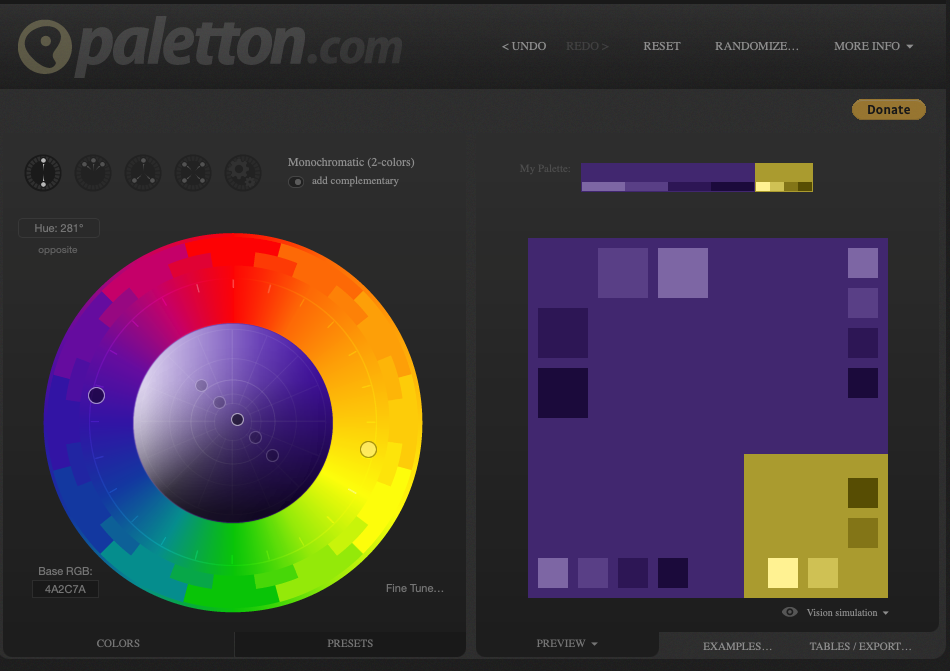
Each colour in the scheme comes with five shades, shown as the strip of swatches under “My Palette” at the top of the preview, running from a light tint through the main colour to two darker ones. You’ll want a handful of them: a dark one for text and headers, the main one for large coloured areas, and a light one for accents.
Testing the scheme before you use it
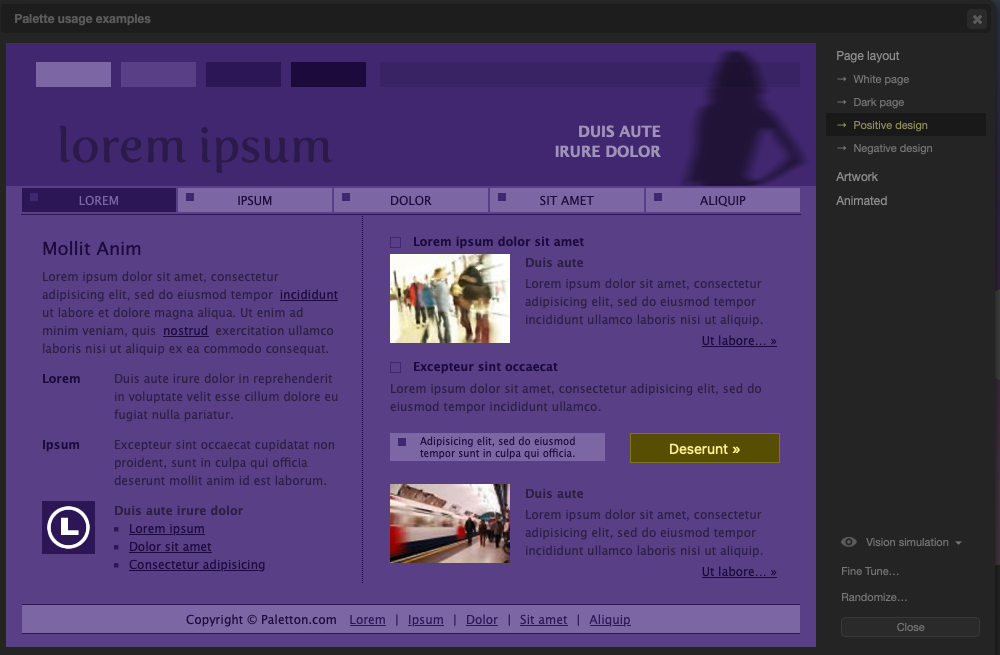
What turned out to be the most useful part of the tool, for me, is that it lets you see the scheme in use before you write any CSS. The “Examples” tab drops the palette into a sample page, with white-page, dark-page and “positive design” layouts, and it is a quick way to find out whether the mood you wanted is the mood you got.
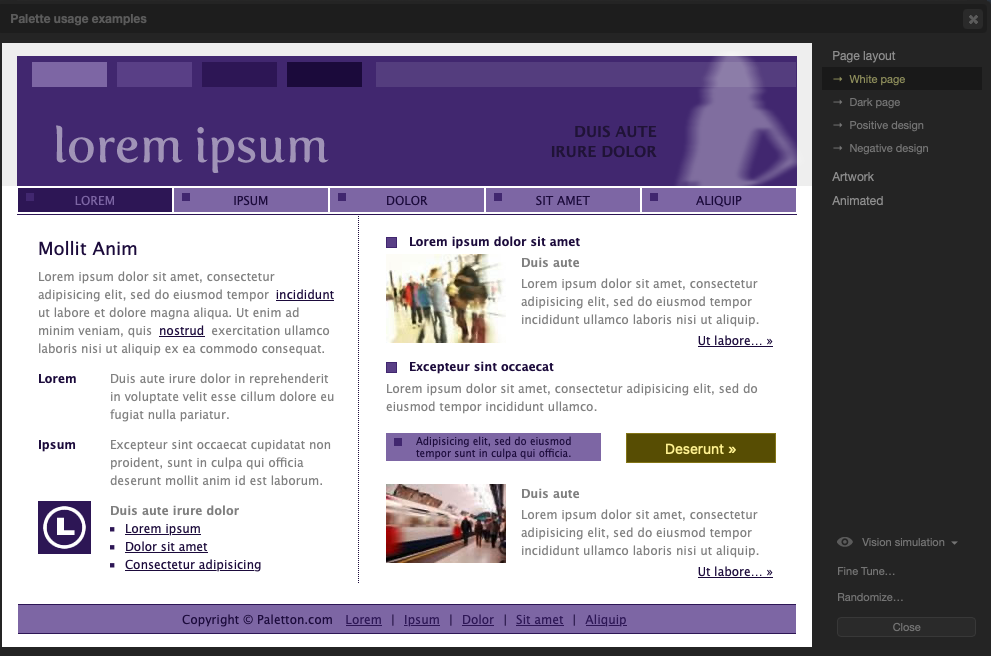
The dark-page version is close to what I had in mind for the Evil Lair, and it is also the one that made me change my mind about which shade should be the page background.
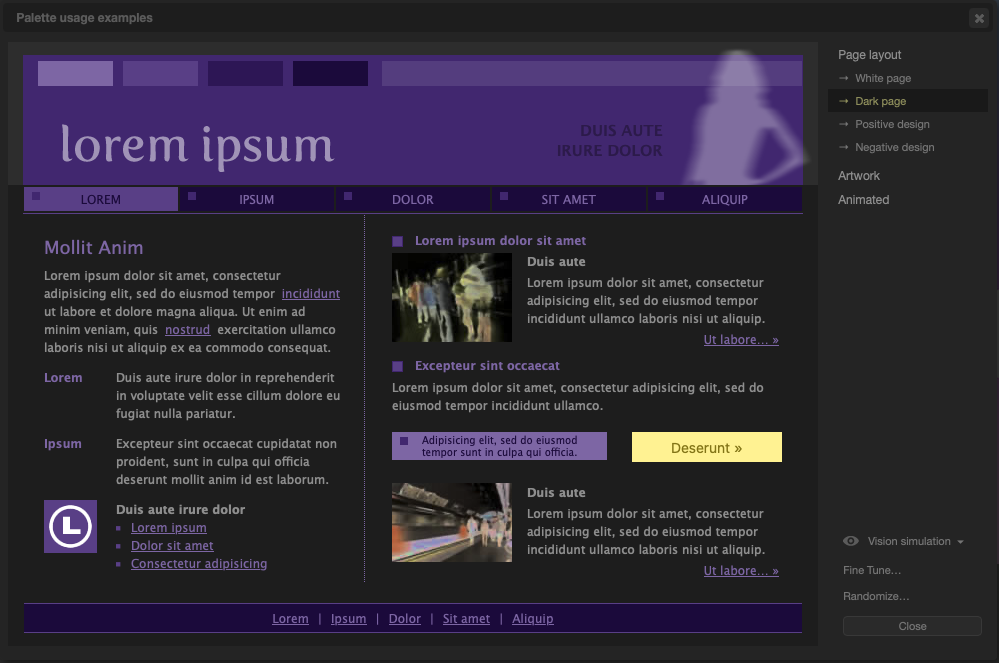
The positive-design layout, which fills the page with the main colour instead, is a reminder of how heavy a saturated colour feels across a large area:
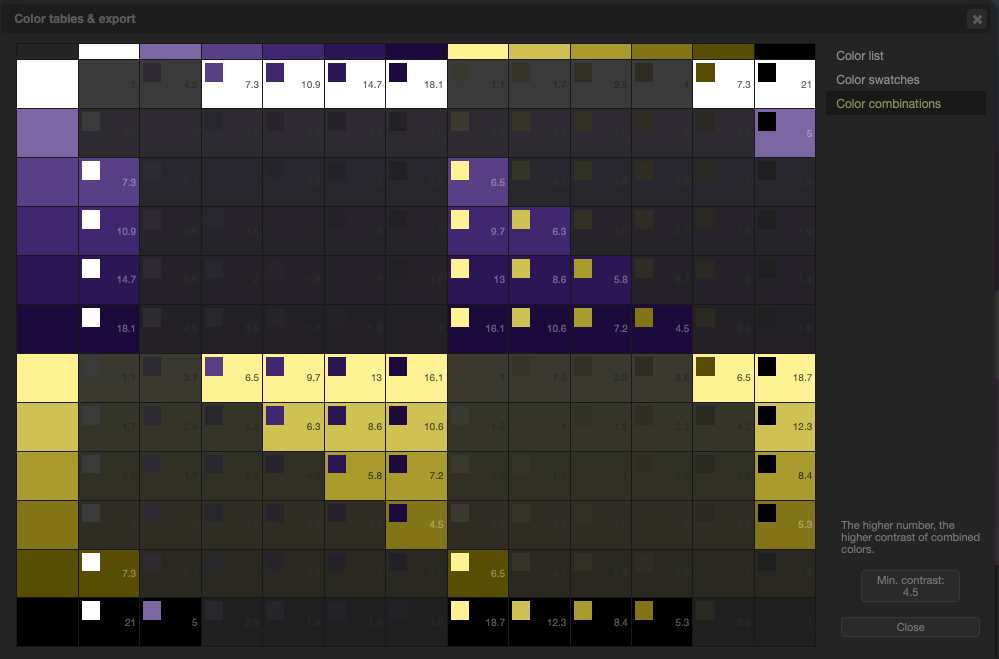
The tab I’d single out for anyone who cares about accessibility is “Color combinations” (inside the Tables / Export dialog), which lays every shade in the scheme against every other and prints the contrast ratio of each pair. A filter lets you grey out any pair below a minimum, and the dialog helpfully spells out the thresholds from the Web Content Accessibility Guidelines: a ratio of 4.5 for small text and 3 for large elements.
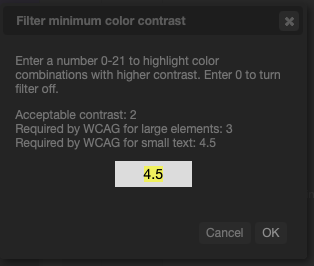
With the filter set to 4.5, only the pairs that are safe for body text stay lit:
Relaxing it to 3 lets more pairs back in, which is fine for headings and large buttons but not for paragraphs:
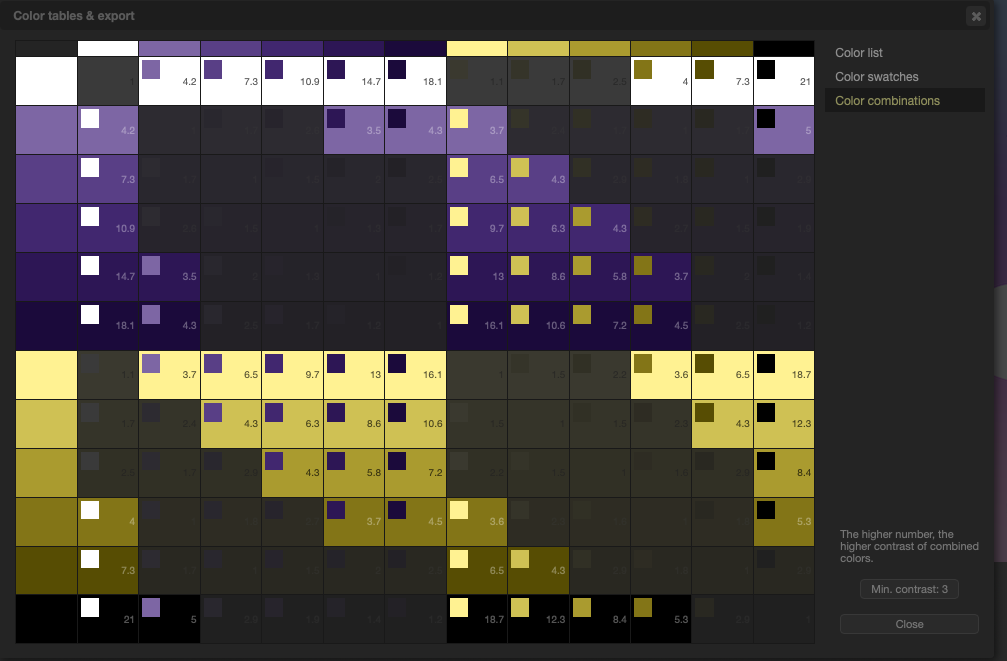
I’ll come back to this grid when we write the stylesheet, because it settles most of the “which shade goes where” decisions without any guesswork.
Getting the scheme into SCSS
The step that ought to make Paletton useful for developers rather than just designers is the export. Under Tables / Export there is a “Color list” with a set of formats down the side: HTML, CSS, LESS, SASS, XML and plain text. Choosing SASS is meant to give you a file of ready-made variables.
In practice, at least in Safari, which is what I was using, none of those exports worked. Not the SASS option, not the CSS option, and not the others either, so I wouldn’t build a workflow around them without testing them in your own browser first. I haven’t tried other browsers, so I can’t say whether the fault is Safari’s or the site’s.
The workaround is less painful than it sounds, because the Color list view itself still works. It shows each shade as a swatch with its hex code and RGB values underneath, and with five shades in each of two colours that’s ten codes to copy:
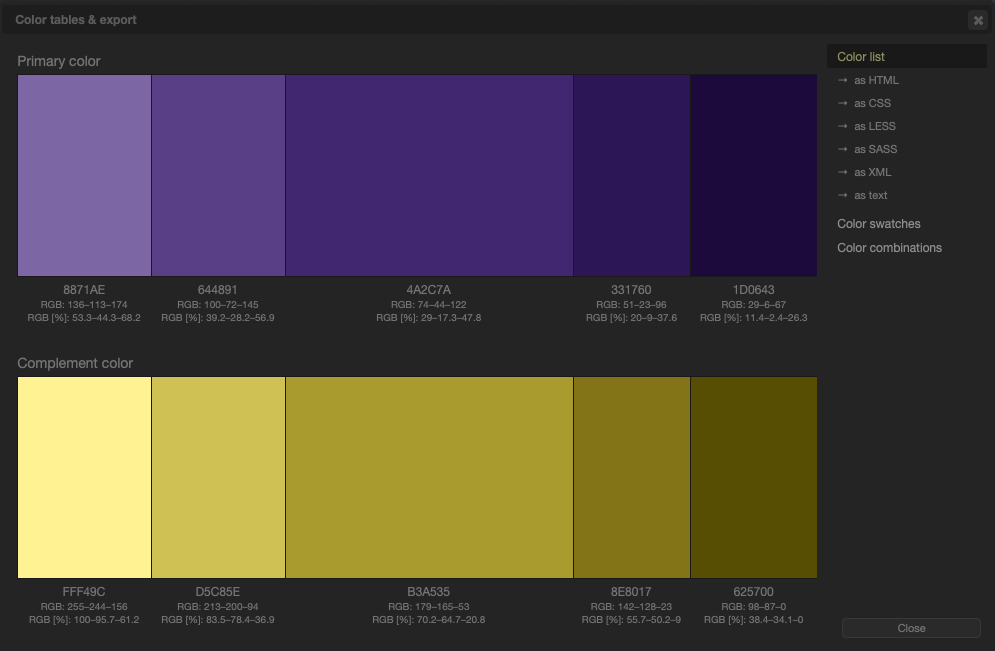
That screenshot is also a nice confirmation of the hex arithmetic in the next section, since the main purple is listed as 4A2C7A with RGB values of 74, 44 and 122. Typing the codes into a file yourself takes a couple of minutes and has the side benefit of letting you choose the variable names, so here is the file I wrote from that screen, numbering each family from the main colour (0) through the lighter shades (1, 2) to the darker ones (3, 4):
// Palette generated with paletton.com
// Monochromatic (2 colours) with complement, base hue 281

// Primary: purple
$primary-0: #4A2C7A; // main
$primary-1: #8871AE;
$primary-2: #644891;
$primary-3: #331760;
$primary-4: #1D0643;

// Complement: yellow-gold
$complement-0: #B3A535; // main
$complement-1: #FFF49C;
$complement-2: #D5C85E;
$complement-3: #8E8017;
$complement-4: #625700;
Save that as _palette.scss. The leading underscore is an SCSS convention that means “this is a partial”: it’s meant to be imported into other files, not compiled into a stylesheet of its own. We’ll use it in a moment.
A short detour into hex codes
I’ve been writing hex codes throughout this post without saying what they are, and since they’re the currency of everything Paletton gives you, it’s worth a few lines.
A hex code such as #4A2C7A is three numbers written in base sixteen. Each pair of characters is the amount of red, green and blue in the colour, from 00 (none) to FF (the maximum, 255 in the decimal numbers we usually count in). So #4A2C7A is a moderate amount of red (4A), a small amount of green (2C) and a larger amount of blue (7A), which mixes to a dark purple. Pure red is #FF0000, black is #000000 and white is #FFFFFF. When all three pairs are identical the colour has no hue at all and is a grey, so #333333 is a dark grey, #888888 a middle grey and #DDDDDD a pale one. Where each pair is a doubled character you can abbreviate, so #333 means #333333 and #fff means #ffffff.
That last observation is useful in practice, because it means a grey scale can be written by hand without any tool at all. For a business without a strong brand, a grey scale is a good choice, and four or five steps are plenty: something like #222 for text, #555 for secondary text, #888 for borders, #ddd for dividers and #f5f5f5 for backgrounds. If you look back at the CV’s palette from the CSS post, you’ll notice its “greys” weren’t truly grey: #1f2933 for text has a little more blue in it than red, which is why that scheme felt cohesive with its blue accent rather than looking like a black-and-white document with a blue link. A grey with a slight tint of the brand colour is the cheap trick that makes a neutral look designed.
Why SCSS, and what changes when we convert
Now to the part of this post I think is more important than the colour theory, which is what we do with the palette file. SCSS (the “Sassy CSS” syntax of the Sass language) is a superset of CSS: any valid CSS file is already valid SCSS, so converting is a matter of renaming the file and then using the extras as and when they help. The extras that matter, for a small site like a CV, are these:
- Variables, so a colour is named once and used everywhere.
- Partials and modules, so the palette lives in its own file and different pages can share it.
- Nesting, so rules that belong together are written together.
- Mixins and functions, for the bits you’d otherwise copy and paste.
Browsers can’t read SCSS, so something has to compile it to CSS, and we’ll get to that. First, the CV. Here is the colour block from the CSS post, which I’ll keep in the CV’s own style.scss:
@use 'sass:color';
@use 'palette' as p;

$card-bg: color.scale(p.$primary-1, $lightness: 75%);

:root {
  --bg: #fff;
  --text: #{p.$primary-4};
  --muted: #{p.$primary-2};
  --accent: #{p.$complement-4};
  --card: #{$card-bg};
}
The shades are chosen with the contrast grid from earlier open beside the editor. The darkest purple on white scores 18.1 and the second-lightest purple on white scores 7.3, so both are comfortable for body text and secondary text. The darkest gold on white also scores 7.3, so it works as a link colour even though gold on white looks alarming in the swatch. The palette has no pale background of its own, so color.scale makes one by pushing the lightest purple 75% of the way to white, which is the kind of job the colour functions further down are for.
@use 'palette' as p loads _palette.scss (Sass finds it without the underscore or the extension) and gives it the short name p, so a variable is reached as p.$primary-0. The #{ ... } wrapper is interpolation, which is needed here because we’re putting a Sass value inside a CSS custom property, and without it Sass would leave the text p.$primary-0 in the output for the browser to choke on.
You may be wondering why I’ve kept the CSS custom properties at all, when SCSS variables could do the same job. The reason is that they’re different things that happen at different times. SCSS variables exist only while the file is being compiled and are gone by the time the browser sees anything, so they’re ideal for the fixed palette. CSS custom properties survive into the browser and can change while the page is open, which is exactly what the dark mode button from the JavaScript post depends on. The pattern that falls out of this is a good one: the palette is held in SCSS variables, and the roles (background, text, accent) are held in custom properties that the SCSS fills in. A dark theme is then a second block that assigns different palette entries to the same roles, with no change to any other rule.
Nesting is the next thing the CV benefits from. In plain CSS the job entries were four separate rules that each repeated .job:
.job { background: var(--card); border-radius: 8px; padding: 1rem 1.25rem; }
.job h3 { margin: 0; }
.job .dates { margin: 0; color: var(--muted); font-size: 0.9rem; }
.job:hover { box-shadow: 0 2px 8px rgba(0, 0, 0, 0.15); }
In SCSS they become a single block, where the & stands for the parent selector:
.job {
  background: var(--card);
  border-radius: 8px;
  padding: 1rem 1.25rem;

  h3 {
    margin: 0;
  }

  .dates {
    margin: 0;
    color: var(--muted);
    font-size: 0.9rem;
  }

  &:hover {
    box-shadow: 0 2px 8px rgba(0, 0, 0, 0.15);
  }
}
The compiled CSS is the same four rules as before. The difference is entirely in the file you maintain, where renaming .job is now a one-line change and it’s obvious at a glance what belongs to a job. It’s easy to over-nest, and a rule of thumb that has served me well is to stop at about three levels, beyond which the generated selectors get long and fragile.
The mixin is the last piece, and the CV already has a candidate: the media query that stacks the header on a narrow screen. If the CV grows a second place that needs the same breakpoint, you don’t want the number 30rem scattered through the file, so you wrap it:
@mixin narrow {
  @media (max-width: 30rem) {
    @content;
  }
}

.site-header {
  display: flex;
  justify-content: space-between;

  @include narrow {
    flex-direction: column;
    align-items: flex-start;
  }
}
If you later decide that “narrow” means 35rem, there is one place to change it. This is a small example, but it is the pattern for anything you find yourself copying.
Reusing the palette across two pages
The payoff for putting the palette in a partial is that the Evil Lair and the CV can both use the same file, or, more usefully, each can have its own. The Evil Lair stylesheet from earlier becomes this:
@use 'palette' as p;

body {
  margin: 0;
  font-family: system-ui, sans-serif;
  line-height: 1.6;
  color: p.$complement-1;
  background: p.$primary-4;
}

header {
  padding: 3rem 1rem;
  text-align: center;
  background: p.$primary-0;
  color: #fff;
}

h2 {
  border-bottom: 2px solid p.$complement-0;
  padding-bottom: 0.25rem;
}

a {
  color: p.$complement-2;
}
This is the dark-page layout from Paletton’s examples, and the grid backs it up: the palest gold on the darkest purple scores 16.1, white on the main purple in the header scores 10.9, and the mid-gold link colour on the dark background scores 10.6. My first instinct had been the opposite, dark text on the lightest purple, and the grid’s answer for that pair is 4.3, just under the 4.5 line for small text, which is the sort of near miss that looks fine on a good monitor and tires the eye on a bad one. Notice also that nothing in this file contains a hex code. Every colour is a named entry from the palette, so generating a different scheme and replacing _palette.scss re-themes the entire page without opening the stylesheet. That is the concrete advantage over the #4a2c7a repeated three times that we started with, and it’s the thing I wish I’d had when I picked the CV’s colours by eye.
SCSS also has built-in colour functions, which are worth knowing about for the cases where Paletton’s shades don’t quite cover what you need. In the current version of Sass they live in the sass:color module:
.job:hover {
  background: color.adjust($card-bg, $lightness: -4%);
}
That darkens the card slightly on hover while keeping it tied to the palette (color is already loaded at the top of the file, where we made $card-bg). (Older tutorials will show lighten() and darken() as global functions, and you’ll still see them in a lot of existing code, but they’re deprecated in modern Sass, so I’d use the module version in anything new.)
Choosing a scheme for the job in hand
The Evil Lair is a case where I could choose any identity I liked. A CV is different, because it exists to help one specific person look right to one specific reader, so the colour decision comes out of who is going to read it. I’d split this into three situations.
Applying to a company with a prominent brand
If the company’s colour is unmistakable, such as the orange of a well-known airline or utility, the red-white-and-blue of the French government’s public services, or the particular greens and golds of the British Army, the sensible move is to belong already. A CV is read by someone who looks at that palette every day, and a document in a familiar colour and typeface reads, below the level of conscious attention, as someone who already fits in. A CV that looks like it came from the same family as the job advert is doing some quiet persuasion before anyone has read a word.
In practice, find the organisation’s brand guidelines (large organisations usually publish them, and public bodies often publish a full design system), take the primary colour from there, and put it into Paletton as the starting hue. A monochromatic scheme with a complement then gives you the shades you need while keeping the main colour true. If they publish a typeface you can use, use it; if the typeface is licensed and you can’t, pick the closest free equivalent. Do not copy their logo, though, since that’s a step from “I belong here” to “I’m pretending to be them”, and I’d also hold back from using their colours so heavily that the CV looks like a forgery. The aim is a nod to the brand, with the person’s own name still the loudest thing on the page.
A caution about sailing and charter brands, which I mention because they were on my own list: a brand with a lot of colour in its marketing doesn’t necessarily have one brand colour, so the logo and the guidelines are a better guide than whatever the homepage happens to be showing this week.
Applying to a company without a prominent brand
For the majority of employers, who don’t have a colour you could name, I’d stay quiet. A blue scheme is the usual answer, because blue reads as competent and trustworthy and almost nobody dislikes it, which is also why it’s so common. A grayscale scheme is the other good answer, and it has the extra virtue that it prints perfectly on a black-and-white office printer, which still happens more often than anyone admits. Both are choices that say “the content is the point”, and for a CV that is nearly always true.
This is also why I’d make monochromatic-with-a-complement the standard for a CV. It is an uncomplicated document with one job, and a scheme with several competing hues is solving a problem it doesn’t have. A single family of shades for text, headings and cards keeps it calm, and the complement is held in reserve for the one or two things worth drawing the eye to, such as the contact link. A triad on a CV tends to make the reader notice the colours rather than the career.
The Evil Lair, again
The villain’s brand gets to be a deliberate act of design, and here the colour psychology is working in earnest. We’ve already decided on a dark purple for menace and luxury with a gold accent for action. If the lair were instead pitching to the more nervous end of the market, such as retired masterminds who mostly want a reliable boiler, I’d move toward a deep blue and let the menace recede. If it were a flashier brand aimed at younger, up-and-coming supervillains, I’d push the red up and let the purple stand behind it. The tool doesn’t change; only the starting hue and the mood do. This is the other thing a palette file gives you, which is the ability to try three brands in an afternoon by swapping one partial and recompiling, rather than rewriting a stylesheet three times.
Turning SCSS into CSS
Browsers only understand CSS, so the SCSS has to be compiled, and since I’m going to forget to do it by hand, I want that to happen automatically. The compiler is Dart Sass, which is distributed through npm as the sass package, and which you can install in the project with:
npm install --save-dev sass
Compiling a single file is one command (npx sass scss/style.scss css/style.css), and there’s a watch mode (--watch) for development that recompiles whenever a file changes. The --style=compressed option squashes the output for production.
In a Makefile
If you’ve read the post on Makefiles, this will look familiar, since compiling SCSS to CSS is exactly the kind of “this file is built from those files” relationship Make was designed to describe:
SCSS_SOURCES := $(wildcard scss/*.scss)

css/style.css: $(SCSS_SOURCES)
	npx sass --style=compressed scss/style.scss $@

.PHONY: build clean
build: css/style.css

clean:
	rm -f css/style.css css/style.css.map
The rule says that css/style.css depends on every .scss file in the folder, so Make recompiles when the main file or any partial changes, including _palette.scss. That dependency list is the reason the wildcard matters: if only style.scss were listed, you could swap in a new palette, run make, and be told there was nothing to do. I ran this against the CV’s SCSS from earlier in the post, with the _palette.scss from the Paletton section beside it. The first run compiles, and the second correctly does nothing:
$ make build
npx sass --style=compressed scss/style.scss css/style.css
$ make build
make: Nothing to be done for `build'.
The compiled stylesheet begins with the five roles from the colour block, now as plain CSS custom properties with the palette’s hex codes filled in:
:root{--bg: #fff;--text: #1D0643;--muted: #644891;--accent: #625700;--card: rgb(88.3333333333%, 86.0784313725%, 92.0588235294%)}
The first four are exactly what you’d hope for. The fifth, --card, is the pale background that color.scale calculated, and Sass writes a computed colour out as an rgb() with percentages rather than a hex code. It is valid CSS and browsers will render it perfectly well, but it is not pretty, and it is a good reminder that the compiled file is output to be read by browsers, not by you.
Two more observations from running it. Touching _palette.scss and running make build again recompiled the stylesheet, which is the wildcard doing its job. And, a small snag that cost me a few minutes, the version of Make that ships with macOS (GNU Make 3.81) compares file times to the second, so if you edit a file and run make within the same second, it can decide nothing has changed. That is only likely when you’re scripting a test, but it is worth knowing if a rebuild ever seems to be missing.
In a GitHub Actions pipeline
The Makefile covers your own machine, but the compiled CSS shouldn’t need to be committed, and it certainly shouldn’t depend on someone remembering to run a build before pushing. The pipeline can build it fresh on every push, which is the same arrangement this very blog uses for its Mermaid diagrams. The workflow below checks out the code, installs Node, installs the dependencies from the lock file, runs the Makefile and uploads the result:
name: Build styles

on:
  push:
    branches: ["main"]
  pull_request:

jobs:
  build:
    runs-on: ubuntu-latest
    steps:
      - name: Checkout
        uses: actions/checkout@v4

      - name: Setup Node
        uses: actions/setup-node@v4
        with:
          node-version: "22"
          cache: npm

      - name: Install dependencies
        run: npm ci

      - name: Compile SCSS
        run: make build

      - name: Upload site
        uses: actions/upload-artifact@v4
        with:
          name: site
          path: |
            index.html
            css/
Running the same make build locally and in the pipeline is deliberate. The pipeline has no special knowledge of how SCSS compiles; it only knows to call the same target you call, so “it works on my machine” and “it works in CI” are the same claim. Adding pull_request to the triggers means a broken stylesheet fails the check before it reaches main, which is a much cheaper place to find out. A typo in a variable name is enough to do it. When I changed p.$primary-4 to p.$primary-9 in the CV stylesheet, Sass stopped with an error and make exited non-zero, and a non-zero exit is all a pipeline step needs to turn red:
text
Error: Undefined variable.
  ╷
8 │   --text: #{p.$primary-9};
  │             ^^^^^^^^^^^^
  ╵
  scss/style.scss 8:13  root stylesheet
make: *** [css/style.css] Error 65
From the artifact, you can hand the files to whatever deploys the site, whether that’s the Azure approach from earlier in the series or a Pages deployment.
A final aside, since this blog is built with Jekyll: Jekyll compiles SCSS itself. A .scss file placed under assets/ with two lines of empty front matter at the top is turned into CSS during the site build, with no Node and no Makefile rule needed. That is a perfectly good option if your site is Jekyll anyway, and the Makefile route earns its place when you have a plain HTML site like the CV, where nothing else would do the compiling.
What this buys you
The CV I styled a month ago by eye has the same five colours it had then. The difference is that those colours now come from one palette file, drawn from a wheel that guarantees they belong together and checked against a contrast grid, and a change of mood (a blue version for a bank, an orange one for a company that lives in orange) is a matter of generating a new palette, retyping ten hex codes (the export menu not having worked for me) and recompiling. The work has moved from hand-tuning forty values to making one decision about brand, and then making it again if the answer changes.
It is also worth saying that none of this makes the colour choices for you. Paletton will happily give you a harmonious scheme in a colour that is wrong for the job, and the psychology section above is a prompt for the conversation rather than a verdict. What the tools remove is the mechanical part: the squinting, the copying of hex codes and the hunt for the third place you used #4a2c7a. The judgement about who is reading, and what they should feel, stays where it was, and with the mechanics out of the way there is rather more time to spend on it.
This post was first published on Medium on 23 October 2026.